

Updated 02/25/2026
GOdonate User Experience
GOdonate is a public-facing website where donors can make online donations.
Registration / Sign In
Though users are not required to register to give through GOdonate, we encourage users to create an account. Registered users can view more details on GOdonate, including their donation history. Registering will also help the foundation track its donations.
1. To create a new account, the new user can click Register or create a new account from the sign-in page. If the user already has a GOdonate or GOfund login, they simply click sign in and enter their login credentials.
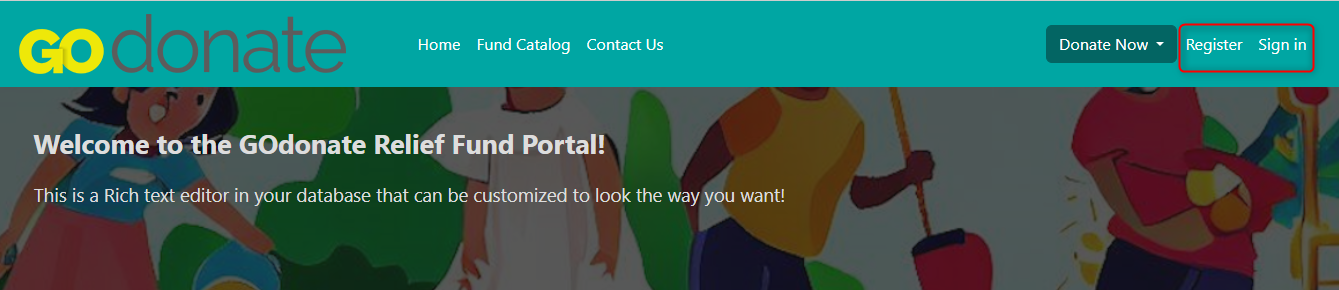
2. The registering user will be taken to a short form where they will enter their first and last names, cellphone, email address, and password.
3. They will receive an email with a verification link, which they need to click on to sign in.
If they do not receive the verification email, or if they lose it before verifying, they can log in and select the option to resend it.
Update Password
If a user needs to change their password, they can do this by using the forgot password link on the login page:
Or by clicking their name in the top corner when logged in to GOdonate and choosing Manage:
User is Already Registered
If a registered user tries to register again, the system will recognize their email address and remind them that they already have an account. It will also include a link to reset their password if they have forgotten it.

Making a Donation
After verifying their email address, the user can log in to GOdonate, where they will see the following options:
Home
- The GOdonate home page features up to three spotlighted funds and a list of fund categories.
- Clicking Learn More on a fund will take the user to the fund’s detail page. They can also filter the list of funds by clicking on a fund category.
Fund Catalog
- The list can be searched by fund name (keyword search) or filtered by category in the drop-down.
Donations
Please note that a user does not need to register/log in to make a donation. However, as mentioned above, registered users can view more details on GOdonate, including their donation history.
1. Donate - To donate, the user can click the Donate Now dropdown. This is in the top-right corner of every page.

You can also donate from within a fund’s detail page.
2. Enter Details: They will require them to enter gift details:
- Amount: dollar amount of this gift; required field for all donations.
- Purpose: users will check whether their donation’s purpose is general or designated. The form will default to General (unrestricted).
- Dedicated purpose: if they select Designated purpose, a new field will appear in which you can type in the purpose.
- Dedicated purpose: if they select Designated purpose, a new field will appear in which you can type in the purpose.
- Add Dedication (In memory/honor): the user can select either "In honor of" or "In memory of" on the donation form. This will allow them to enter the name of the person it is dedicated to, as well as the contact information for the person who should receive notification of the gift. Dedication info will be captured on the Gift record.
3. Enter Donor Info: Users who did not register/sign in will need to enter donor information.
4. Donation Recurrence: If the donor wishes to make a recurring donation, they can select the frequency here. A user must be registered and signed in to make a recurring donation. The recurring gift will process automatically at the chosen cadence. More information on viewing/modifying recurring donations below. The site will prompt the user to log in or create an account after selecting a recurrence.
5. Signed-in donations: For users who have signed in, GOdonate will display Donors from akoyaGO that are associated with their user. The user can select the appropriate Donor, or choose Add new Donor if the correct option for their gift is not shown.
6. Gift acknowledgment: The user will select how they would like to be acknowledged.
7. Payment Page: After donor information has been entered, the user will be prompted to enter credit card information.
GOdonate will prevent users from repeating a payment for a transaction where payment has already been processed. For example, if they try to hit the back button on their browser after completing a transaction, they will see this message:
Donation History
1. Signed-in users can view donation history by clicking Donation History in the user dropdown.
2. The date filters will default to the current year-to-date, but date filters can be adjusted at the top of the page. The user can export history as a PDF.
View My Finds
Signed-in users who also have a Donor Portal Access fund connection (GOfund), will see an additional option in their user dropdown called View My Funds. Clicking this option will take the user to GOfund, where they will be signed in and can access fund information.
Recurring Donations
If the user has made any recurring gifts via GOdonate, they can view/modify them here.
From this view, the user can pause or cancel a recurring gift using the Actions column to the far right. To view/modify a recurring gift, the user can click the binoculars icon.
They can modify any gift details and click Save Changes or go Back To Recurring Donations. From this page, the user can also pause or cancel the gift using the Pause or Cancel icons at the top.
*Please be aware that once the user saves changes to a recurring donation, the status will change to Modified/Replaced, and a new recurring donation will be created with the changes included.*