

Revised 07/01/2026
- Filter List By (General Ledger and Chart of Accounts)
- Filter Totals By (Chart of Accounts)
- Filter Expressions
- Export to Excel
- Finding Information in the General Ledger
- Personalization Questions and Answers
Filter List By (General Ledger and Chart of Accounts)
The Filter list by section in Business Central allows you to add filters to specific fields to reduce the number of records displayed.
If you do not see the filter pane, click the funnel icon to reveal it. To add a filter, select + Filter, then select the field that you want to filter by.
Next, apply filter criteria to any field(s) to reduce the number of rows displayed. For example, the G/L screenshot below has been filtered to show only transactions that hit asset accounts (in the 1000 range) with a Posting Date after 1/1/2025.
For more information on the syntax to use when typing filters, please see the Filter Expressions section at the end of this Knowledge Article.
If you are filtering by a column displayed in the General Ledger, you can click the column's dropdown to view options. From here, you can choose Filter, which would add this column to the side filter pane and require you to type in your filter, or you can choose Filter to this value, which will filter by the value in the column without requiring you to type in the filter; you will still see the filter appear in the side filter pane and can adjust as needed.
Filter Totals By (Chart of Accounts)
Some lists, such as the Chart of Accounts, display calculated amounts and quantities. The Chart of Accounts includes not only a Filter list by section but also a Filter totals by section, which functions differently.
Filter totals allow the user to adjust dimensions that influence calculations, rather than reducing the number of rows displayed. For example, you can analyze your Chart of Accounts by filtering amounts by a specific time period, fund(s), etc., and then drill down into the calculated totals to see the transactions that make up these amounts.
For example, the Chart of Accounts screenshot below has been filtered to show transaction totals after 1/1/25 and only for those in Department 01.
Here is the same unfiltered Chart of Accounts. Notice the Net Change, Balance, and Bank Balance totals are now unfiltered. Filtering totals did not change the number of rows displayed; instead, it filtered the transactions that made up these calculated totals.
Filter Expressions
A filter expression is an operator to use when filtering data in Business Central. This is the syntax to use when typing in "Filter list by" or "Filter totals by."
Export to Excel
After filtering the lists, you may want to export them to Excel for further analysis. Please note that once a list is exported, this is static data and will not update as data in Business Central is updated.
To export a list to Excel, click on the arrow icon and choose "Open in Excel."
Finding Information in the General Ledger
There are several ways to filter the General Ledger, whether you are researching a specific gift or request, reviewing activity for a donor/vendor, or searching for adjusting entries, deposits, and payments. Below are some tips and tricks for specific common scenarios.
Filter by:
Gift/Request can be used to find all transactions for an entire Gift or Request, including all its payments. Payment No. is a convenient way to find all the lines related to a single payment. Gift payments are prefixed with GPMT- and Request Payments are prefixed RPMT-Document No. can be used to find transactions grouped together.
Some Document No. prefixes that can be helpful for filtering include:
RPMT- (Request Payment)
GPMT- (Gift Payment)
INTERFUND-
BD (Bank Deposit)
G (General Journal)
FF- (Fund Fees)
SA- (Spendable Allotment)
JIA
AUTOBALANCE-
REAPPORTION-
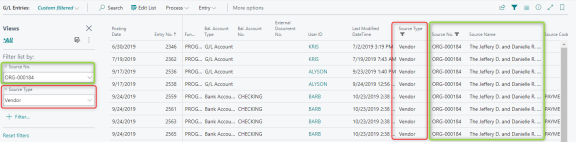
Source Type/Source No. can be used to find all transactions for a Donor/Vendor
Source Code can be used to find all adjusting entries/deposits/payments. Some Source Codes to be aware of that can be helpful for filtering include: PURCHASES for InvoicesGENJNL for adjusting entriesPAYMENTJNL for paymentsBANKDEP for bank deposits
Personalization Questions and Answers
To modify the columns shown to a user, for example in the General Journals or General Ledger, you can personalize your screen. For more information, see Personalize in Business Central